
In the current day and age where user data is currency and is harvested from wherever possible, securing your personal files and documents is of paramount importance. The files you upload to various cloud providers are often stored completely unencrypted and free for them to use for any purpose they wish—it truly isn’t very secure. Even though many providers have privacy policies that are supposed to prevent this, it has been found time and again that they break these laws behind people’s backs, and there are very clever loopholes that allow government agencies and other entities to access your data directly.
This is where we need strong and secure encryption for our files before they even touch the cloud. Enter Cryptomator: a tool that allows the use of cloud services with on-device encryption that’s transparent to the user, providing a very easy-to-use and friendly way to secure your personal data. And the cherry on top? It’s open source! 🎉
What is Cryptomator and Why Use It?#
Cryptomator is an open-source client-side encryption tool that allows you to create encrypted vaults on your devices using AES-256 encryption. These vaults, when opened, behave like any regular folder or drive, but any files put inside are automatically encrypted using modern cryptographically secure encryption schemes. These vaults can be placed or uploaded to the cloud, and thus even if your account gets compromised, your data still remains protected.
Think of it like this: imagine having a magic briefcase that automatically locks and scrambles everything you put inside it, but when you open it with your key, everything looks perfectly normal. That’s essentially what Cryptomator does, except instead of a briefcase, it’s a virtual drive on your computer!
Here’s why you should consider using Cryptomator:
Open-Source Transparency: The code is publicly available for anyone to audit. No hidden backdoors, no suspicious closed-source magic—just good, honest cryptography that you can verify yourself.
Platform Agnostic: Works seamlessly across Windows, macOS, Linux, Android, and iOS. Your encrypted vaults work everywhere without any hassle.
Cloud Provider Flexibility: Works with Dropbox, Google Drive, OneDrive, MEGA, pCloud, ownCloud, Nextcloud and any other cloud storage service which synchronizes with a local directory. You’re not locked into one ecosystem.
No Subscription Traps: Cryptomator follows a one-time purchase model with no recurring costs or hidden charges. The desktop version is completely free, and the mobile apps are reasonably priced (or, ahem, available through certain unofficial channels on Android 😉).
Key Features of Cryptomator#
Let’s break down what makes Cryptomator such a powerful tool for privacy-conscious folks:
🔐 Military-Grade Encryption#
Cryptomator uses AES-256 encryption, a strong encryption standard, to safeguard files. This is the same level of encryption used by governments and financial institutions worldwide. When we say your data is secure, we mean secure.
🚀 Transparent Operation#
Once you unlock a vault, it appears as a regular drive on your system. Drag and drop files, edit them directly, use any application you want—any files you place in this drive will be automatically encrypted by Cryptomator directly in the background. No complicated workflows, no manual encryption steps.
🔑 Recovery Key System#
If your vault config files ever get lost, you can recreate them with the vault-specific recovery key! This feature was added in version 1.18.0 and is a lifesaver if something goes wrong with your vault configuration.
📱 Mobile Integration#
The mobile apps go beyond what the desktop version offers. They integrate directly with Dropbox, Google Drive, OneDrive and WebDAV-based cloud storage services, allowing you to access your encrypted files on the go without compromising security.
🛠️ Sanitizer Tool#
Sanitizer is a console tool built for troubleshooting vaults, detecting issues in the encrypted folder if there are corrupted files or decryption problems. It’s like having a vault repair kit in your back pocket.
Getting Started with Cryptomator: A Step-by-Step Guide#
Here’s how to get started with Cryptomator:
1. Installation#
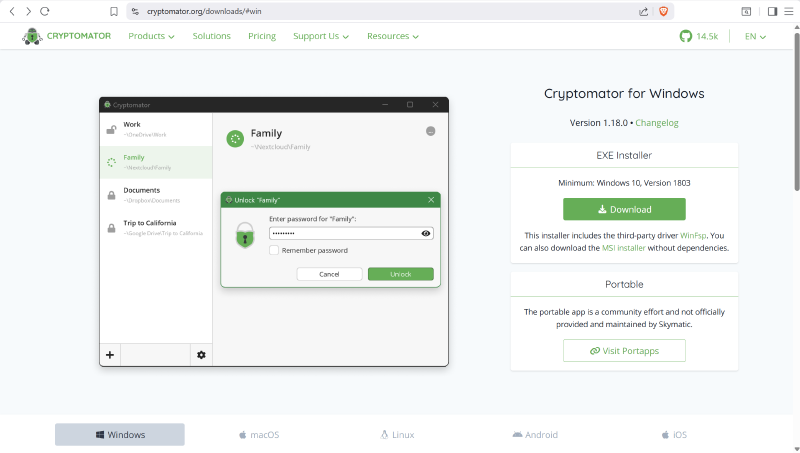
Download and install the latest version of Cryptomator from cryptomator.org for your operating system (Windows, macOS, Linux, Android, iOS).
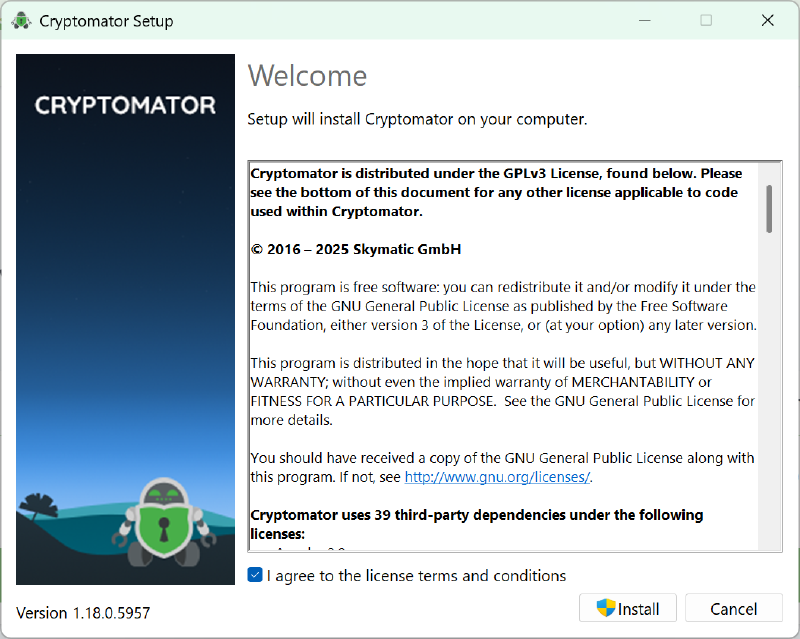
Complete all the steps in the installation wizard to continue
2. Installing the Cloud Backend (Optional)#
If you want to store your vault in the cloud, you’ll first need to set up your cloud storage so it can be accessed through your operating system.
Windows#
- Google Drive: Download and install the Google Drive app for Windows
- OneDrive: Download and install the OneDrive app for Windows
- Dropbox: Download and install the Dropbox app for Windows
- S3/B2: Download and install rclone and configure it to use your required provider, then mount it
macOS#
- Google Drive: Download and install the Google Drive app for macOS
- OneDrive: Download and install the OneDrive app for macOS
- Dropbox: Download and install the Dropbox app for macOS
- S3/B2: Download and install rclone and configure it to use your required provider, then mount it
Linux#
- Everything: Download and install rclone and configure it to use your required provider, then mount it
At this point, you should be able to access the cloud storage as a normal folder or drive in your file manager.
3. Creating Your First Vault#
Now for the fun part—creating your encrypted vault!
- Launch Cryptomator
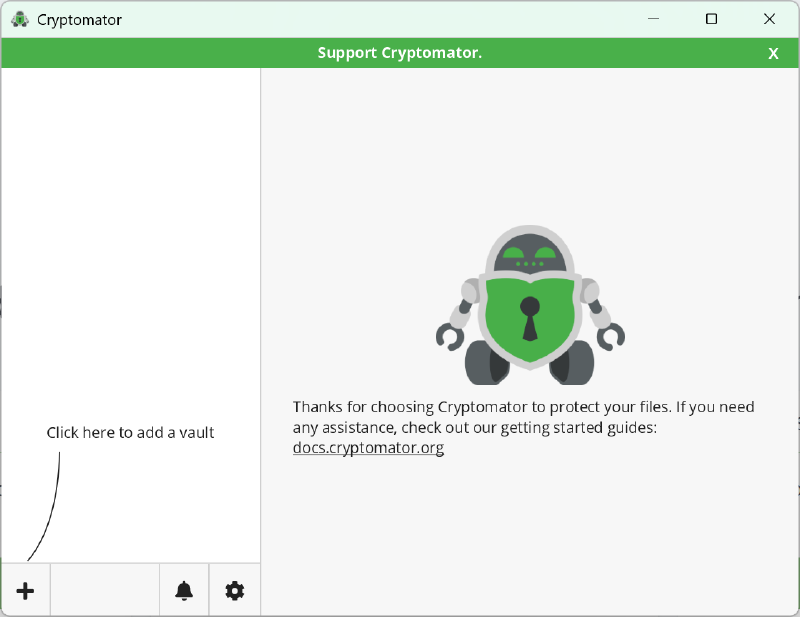
- Click the “+” button and select “Create New Vault”
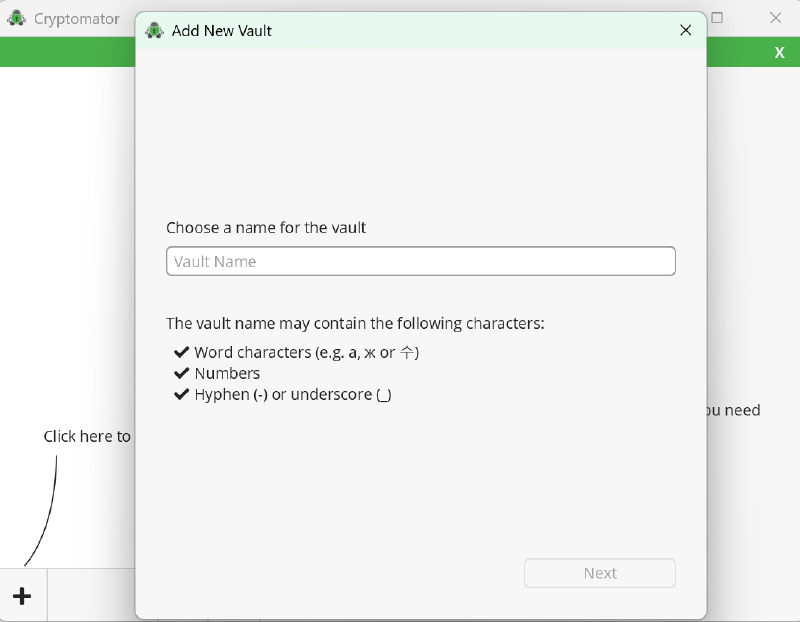
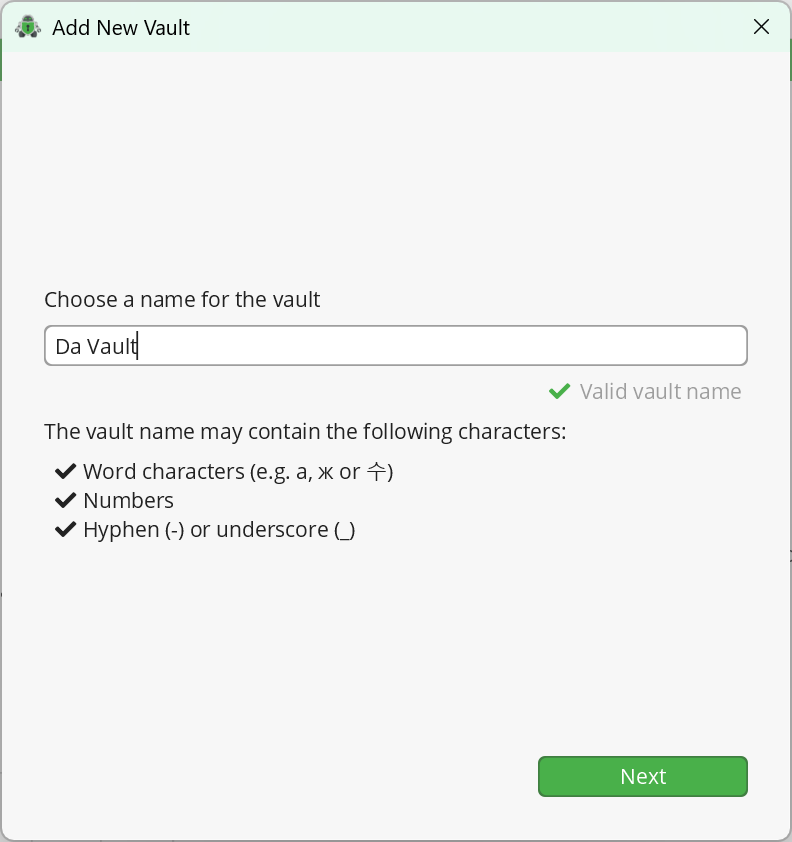
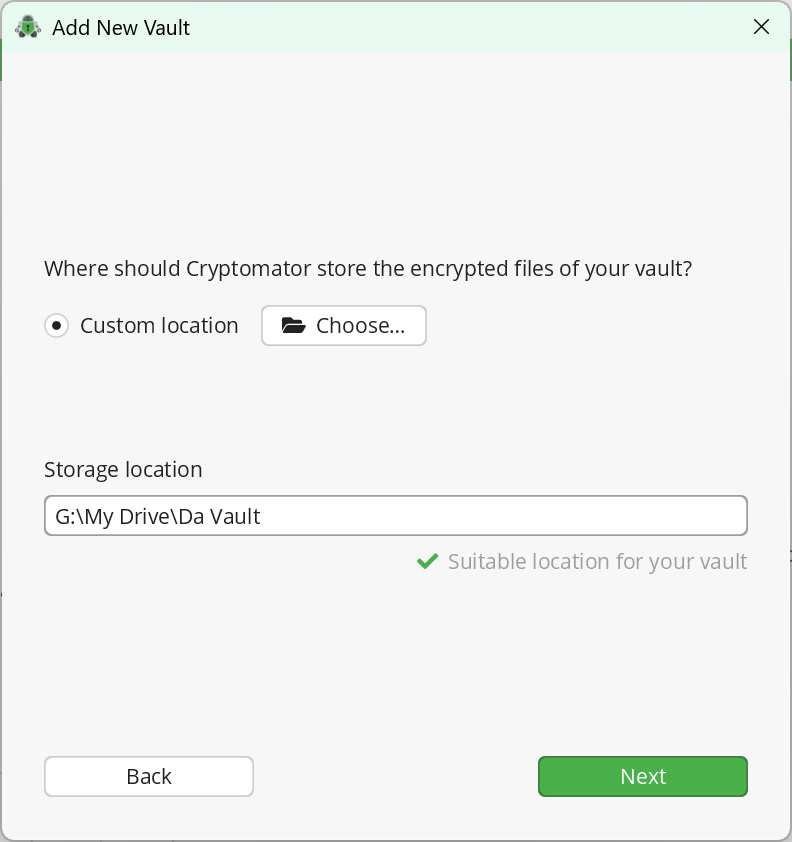
- Choose a name for your vault and select the location where you want to store it. This should be inside your cloud storage folder (e.g.,
C:\Users\YourName\Dropbox\My Vaultor/Users/YourName/Google Drive/My Vault).
- Set a Strong Password: This is crucial! Your vault is only as secure as your password. Use a long, unique password that you haven’t used anywhere else. A password manager like Bitwarden (which I highly recommend) can help generate and store a super strong password.
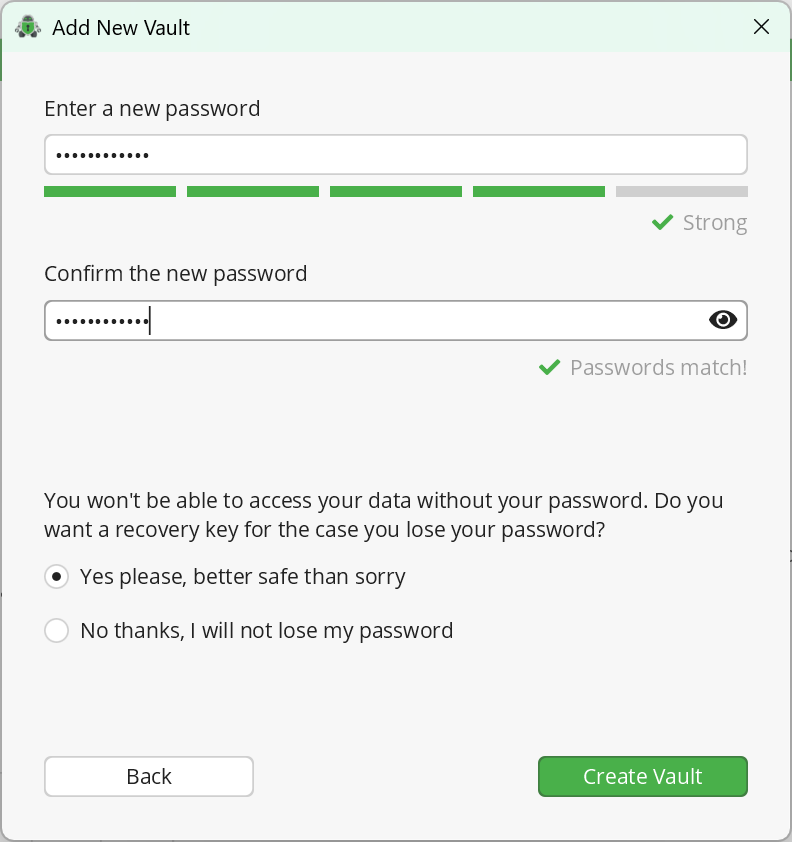
- Save Your Recovery Key: Cryptomator will prompt you to create a recovery key. This is extremely important—store this recovery key securely in a separate location (e.g., password manager, printed copy in a safe). The recovery key allows you to regain access to your data if you forget your password or if vault config files get lost.
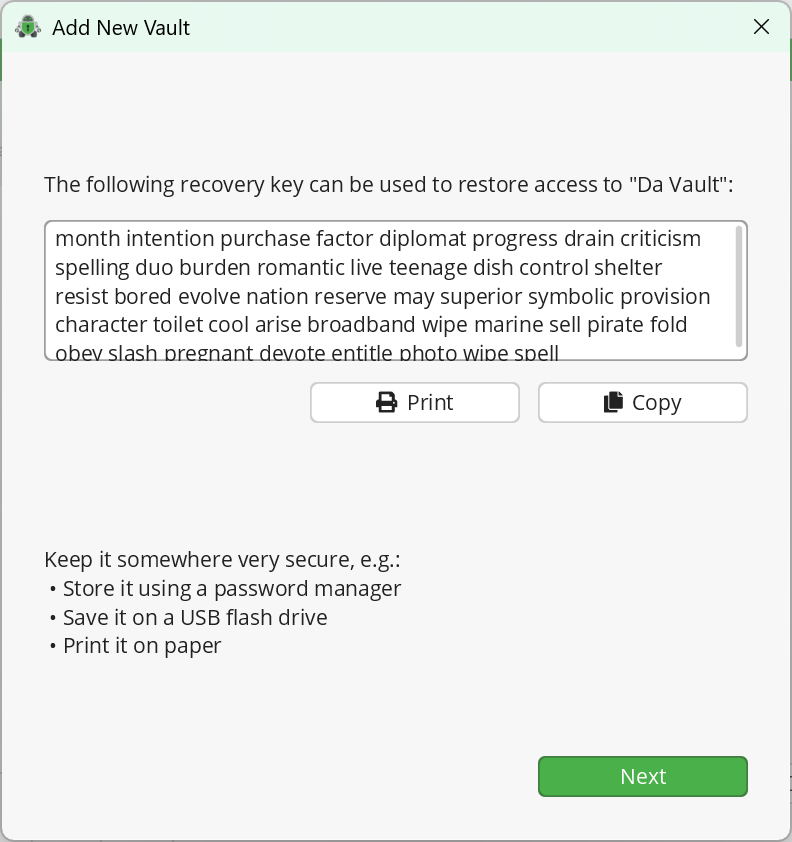
Now your Vault should have been created successfully!
4. Using Your Vault#
Unlocking the Vault#
To access your encrypted files:
- Open Cryptomator
- Select your vault from the list
- Click “Unlock” and enter your password
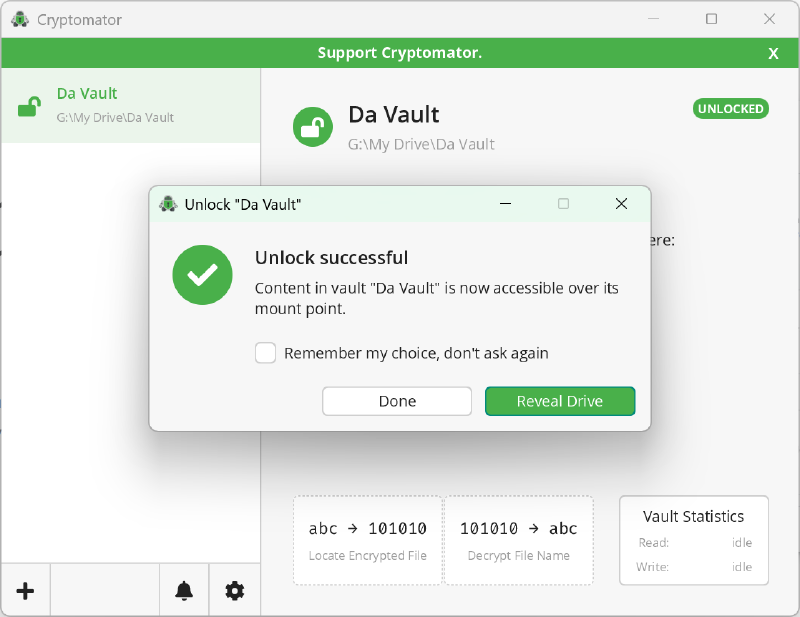
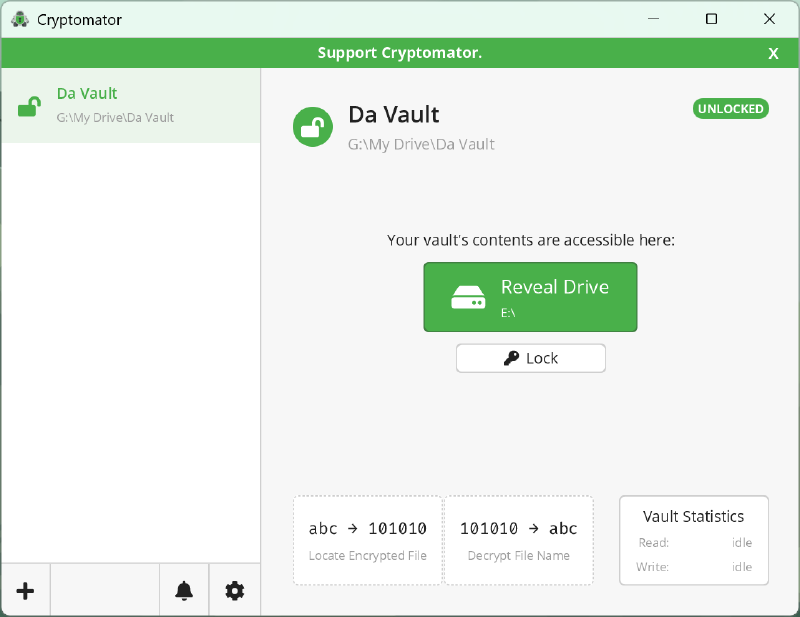
- The vault will mount as a virtual drive
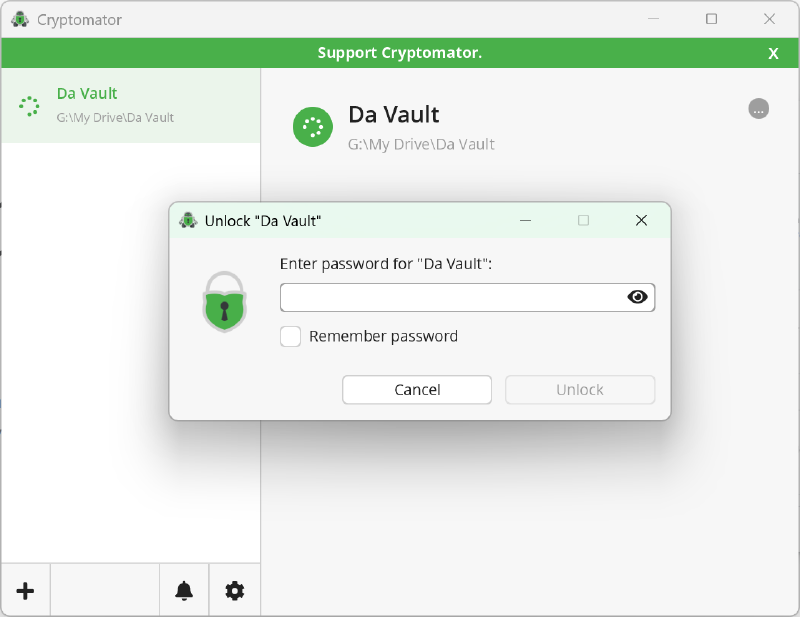
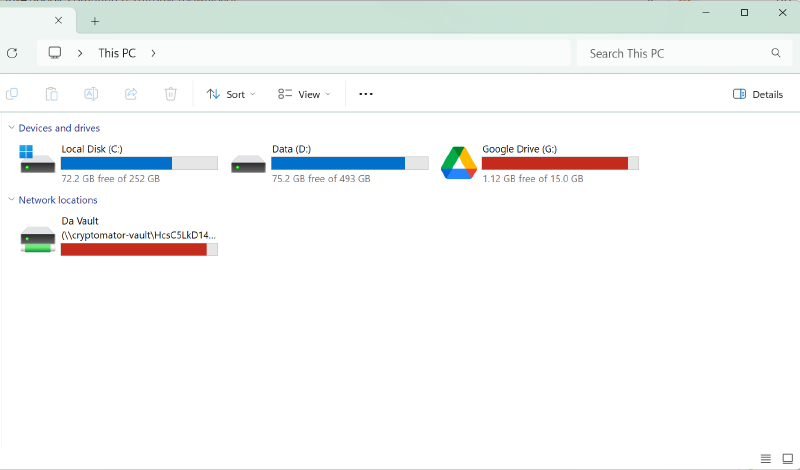
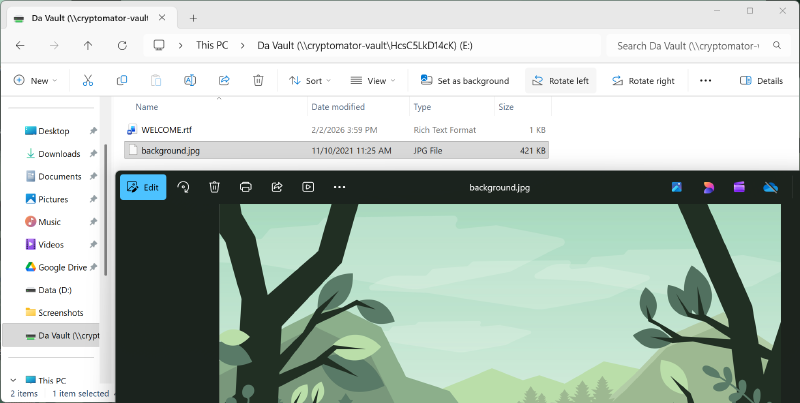
Once unlocked, Cryptomator provides you with a virtual drive where your data is automatically encrypted—no extra steps required. The location varies by operating system (e.g., a new drive letter like Z: on Windows, a mounted folder on macOS/Linux).
Adding Files#
Simply drag and drop files into the virtual drive, or work directly inside it using any application. Everything you save will be automatically encrypted in the background. It’s that simple!
Locking the Vault#
When you’re finished working with your encrypted files, simply click “Lock” in the Cryptomator interface to unmount the virtual drive and secure your vault. The encrypted files will automatically sync to your cloud storage in the background.
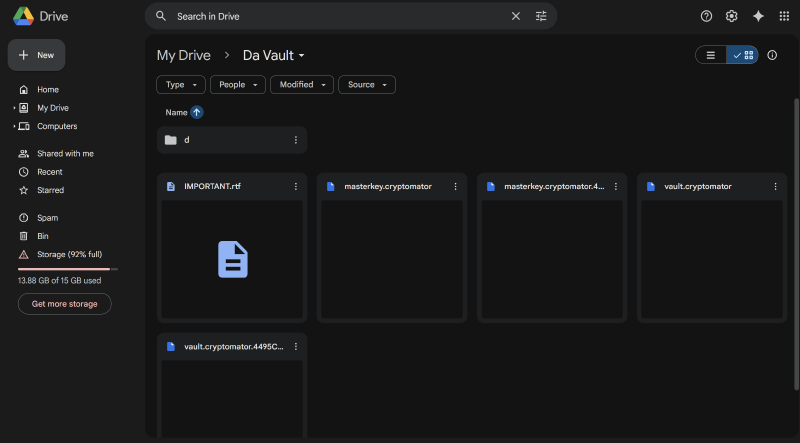
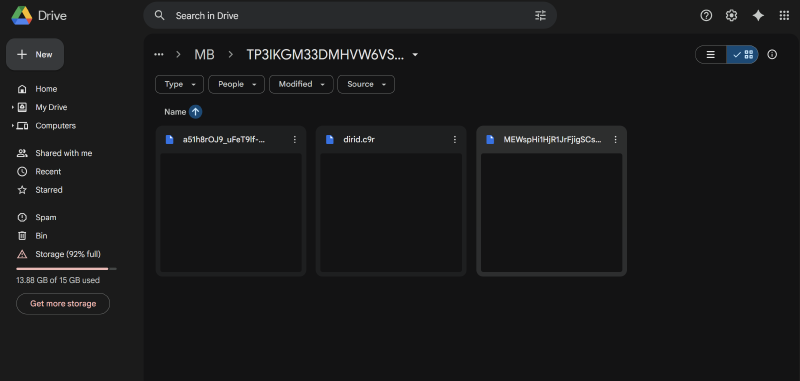
As you can see all the data stored on the cloud provider is completely encrypted and safe.
Cryptomator on Mobile (Android and iOS)#
Cryptomator offers mobile apps that allow you to access your encrypted data on the go. Note that these apps are paid (unlike the desktop version), but they’re well worth it for the convenience.
Installation#
- Android: Download Cryptomator from the Google Play Store
- iOS: Download Cryptomator from the Apple App Store
Using the Mobile App#
- Add Cloud Storage: Connect your cloud storage account (e.g., Dropbox, Google Drive) to the Cryptomator app
- Navigate to Your Vault: Find the vault you created on your desktop within your cloud storage
- Unlock Vault: Enter your password (or use biometric authentication if you’ve set it up) to unlock the vault
- Access Files: Once unlocked, browse and access your encrypted files within the app
- Automatic Synchronization: Any changes you make to your files within the Cryptomator app will be automatically synchronized with your cloud storage
Best Practices for Using Cryptomator#
To maximize the security and usability of Cryptomator, follow these best practices:
🔑 Strong, Unique Passwords#
Use a strong, unique password for each of your vaults. Avoid easily guessable passwords or reusing passwords from other accounts. A password manager (like Bitwarden, which is free and open-source) can help you generate and store strong passwords securely.
What makes a strong password?
- At least 16 characters long
- Mix of uppercase, lowercase, numbers, and symbols
- No dictionary words or personal information
- Not used anywhere else
🛡️ Secure Your Recovery Key#
Store your recovery key in a safe and separate location, ideally offline. Options include:
- A password manager (separate from where you store the vault password)
- A printed copy in a fireproof safe
- A USB drive stored securely away from your computer
Losing your recovery key means losing access to your encrypted data forever if you forget your password. Don’t let that happen!
🔄 Keep Cryptomator Updated#
Regularly update Cryptomator to the latest version to ensure you have the latest security patches and bug fixes. The team is constantly improving the software and adding new features.
🔐 Enable Two-Factor Authentication (2FA)#
While Cryptomator handles encryption, enabling 2FA on your cloud storage account adds an extra layer of security, protecting your account from unauthorized access even if your password is compromised. This doesn’t affect your vault’s encryption, but it prevents attackers from deleting your encrypted files or locking you out of your account.
Comparing Cryptomator with Other Encryption Tools#
Wondering how Cryptomator stacks up against other options? Here’s a quick rundown:
VeraCrypt#
A powerful and feature-rich disk encryption tool that supports full disk encryption and encrypted containers. However, it doesn’t have built-in cloud storage support like Cryptomator. VeraCrypt is better for encrypting entire drives or creating large encrypted containers on external drives, while Cryptomator excels at transparent cloud encryption.
Rclone#
A command-line program to manage files on cloud storage with a crazy amount of features. It supports encryption, but configuration is more complex than Cryptomator. Rclone is excellent for power users and automation, while Cryptomator is perfect for everyday use with a friendly GUI.
Picocrypt#
A simple, modern encryption tool for files and folders. Great for quickly encrypting individual files, but doesn’t offer the transparent vault system that Cryptomator provides. Think of it as a simpler, file-by-file alternative.
Bitwarden#
A password manager (which you should absolutely use!), but not a file encryption tool. Different use case entirely—Bitwarden stores passwords, Cryptomator encrypts files.
LUKS/cryptsetup (Linux)#
The standard for disk encryption on Linux. Powerful and deeply integrated into the OS, but lacks the cross-platform cloud focus that makes Cryptomator so versatile.
Check out my /uses page for more privacy and security tools!Real-World Security: The OneDrive File Picker Vulnerability#
Want a real-world example of why client-side encryption matters? In May 2025, Oasis Security published an analysis about a vulnerability in OneDrive File Picker that allowed third-party applications to access files for which they did not actually have access rights, affecting millions of users.
The scary part? Applications could view and download sensitive content such as tax documents, project plans, or confidential meeting minutes without even using an exploit—they just had to use the File Picker “correctly” (or rather, incorrectly).
If those files had been encrypted with Cryptomator? The attackers would have only gotten gibberish. That’s the power of client-side encryption—even when cloud providers make mistakes, your data stays safe.
Conclusion#
In a world where data breaches make headlines weekly and privacy feels like a luxury, Cryptomator offers something rare: security that actually works without making you pull your hair out. It’s open-source, it’s transparent, it’s cross-platform, and most importantly, it just works.
Even if a data breach occurs, attackers won’t be able to do anything with your encrypted vault—your sensitive information remains fully protected. That’s the peace of mind we’re all looking for.
Whether you’re protecting family photos, financial documents, sensitive work files, or just want to keep your personal data truly personal, Cryptomator is an excellent choice. The desktop version is free, the mobile apps are reasonably priced, and the security is rock-solid.
So what are you waiting for? Head over to cryptomator.org, download the app, and start taking control of your digital privacy today. Your future self will thank you when the next big cloud breach happens and you realize your files are safe behind military-grade encryption! 🔐✨
Have questions about Cryptomator or want to share your own privacy tips? Drop a comment below or reach out on social media. Stay safe out there! 🛡️